System Power
ztC Endurance systems have one power button located on the control-panel ear A module located at the front right of the ztC Endurance system. It houses a USB 2.0 port, power button for the ztC Endurance system, and LEDs that indicate system power status (PWR), fault conditions (ATTN), and module identification status (UID).. Press this button to start the system.
Pressing the Power Button
The system power button functions as follows, assuming both compute modules A customer-replaceable unit (CRU) located at the front of the ztC Endurance system. It is equipped with processors, DIMMs, BIOS, BMC, fans, and other technology to boot and run the ztC Endurance system. Each system contains two compute modules. are in the same state:
-
If the system power is off and standby power is on, pressing the power button turns the system on and boots the operating system. See Starting Up the System.
-
If the operating system hangs or a hardware failure occurs, pressing the power button for several seconds (a "long press") initiates a forced system shutdown, which includes an abrupt shutdown of the VMs. (Standby power remains on.) If possible, use VMware tools to stop VMs before you initiate a forced system shutdown.
Starting Up the System
Make sure the system power cords are plugged into a live power source.
To boot a system and start the operating system
-
Turn on the monitor.
-
Press the power button on the control-panel ear. See Figure 29.
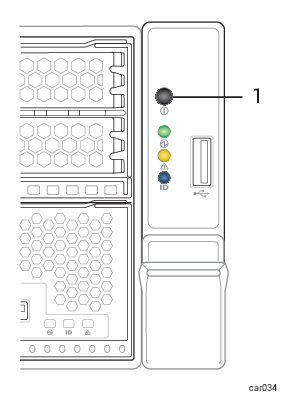
1 Power button
Shutting Down the System
Exit from all applications before shutting down a system.
To shut down a VMware vSphere-based system
-
If you manually shut down the virtual machines, shut down only your virtual machines and then power off the system as described below. The Management VM will shut down automatically.
-
If you want the virtual machines to start up and shut down automatically when you start up and shut down the ztC Endurance system, you must explicitly configure these settings in the Autostart or Virtual Machine Startup/Shutdown properties for the ESXi host, as described in the VMware vSphere documentation.
For additional information about the proper startup and shutdown of virtual machines, see the information below.
If you attempt to shut down the system by using vSphere Web Client, ESXi Host Client, ESXi Shell commands, or F12 on the ESXi home screen, the standby compute module will remain running, which prevents shutdown. When the standby OS detects that the active compute module is down, the standby module automatically takes ownership of the system devices, assumes the role of the active compute module, and restarts the ESXi host.
To shut down a VMware vSphere-based system gracefully, click Shutdown on the Dashboard page of the ztC Endurance console.
When you shut down a VMware vSphere-based system, note that the following behavior is normal:
-
The system stays powered on for two minutes, as all services are stopped and cached data is written to disk.
-
If VMs are running, shutdown could take longer than a minute or two. If the VMs are scheduled to suspend on system shutdown, it can take even longer, depending on how many VMs are running and how much memory they have been assigned.
-
The Ethernet activity and connection-speed LEDs for embedded Ethernet ports may remain lit even when the system is powered down, if Wake On LAN is enabled in the system BIOS (see Enabling and Disabling Wake on LAN).
Note: Wake On LAN is supported only for the host's or BMC's connection to the 1G management network.
When you configure the startup and shutdown properties for virtual machines, note the following guidelines:
-
Only guest operating systems that support the VMware Tools and have these tools installed will shut down properly when the ESXi host shuts down. After modifying the virtual machine settings, you should test your configuration and verify that your guest operating systems start up and shut down as expected.
-
If the guest operating system in a virtual machine hangs while shutting down, it does not prevent the ESXi host from shutting down. However, if you configure an uninterruptible power supply (UPS) with the system, you should set shutdown delays short enough to prevent the UPS battery from becoming depleted before the ESXi host itself shuts down.
-
Do not modify the virtual machine settings for the Management VM. The Management VM is already properly configured to start and stop with the ESXi host. Do not shut down or power off the Management VM itself while the system is running, unless instructed to do so by your authorized Penguin Solutions service representative.
Enabling and Disabling Wake on LAN
The Wake On LAN (WOL) networking standard allows a computer to be turned on or awakened from sleep mode remotely via a network message.
The following instructions allow you to enable or disable WOL for ports on your ztC Endurance system.
To enable WOL
-
As the system starts to boot, press either the Delete key or the Esc key until the system BIOS setup utility appears.
-
When the utility screen appears, use the arrow keys to go to the
Advancedmenu. -
Select
Intel(R) i210 Gigabit Backplane Connectionand press Enter. -
Select
NIC Configurationand then select the port that you want to enable. Press Enter. -
Use the +/= keys to change
Wake On LANtoEnabledand press Enter. -
Press F4 to save your changes and exit the utility.
To disable WOL
-
Download the Intel® Ethernet Flash Firmware Utility (BootUtil) from the following Web site:
-
Use the
-WOLDISABLEor-WOLDoption of BootUtil to disable WOL functionality on the selected port, as described in the preceding Web site.